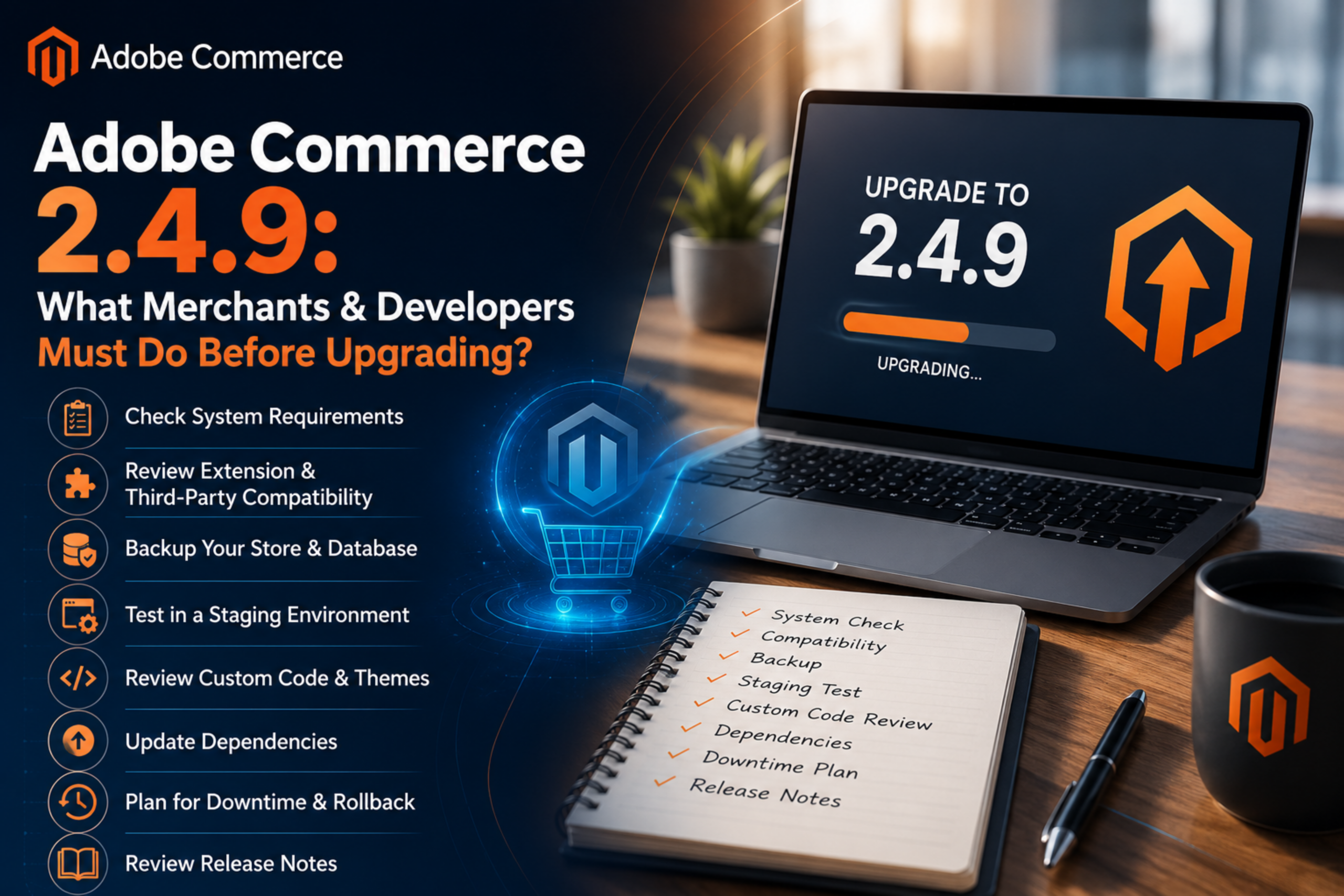
If you have been running your store on Adobe Commerce for a while, you already know that every major release brings exciting improvements – but also a fair share of prep work. Adobe Commerce 2.4.9 is no different. Whether you are a merchant focused on growing your revenue or a developer who lives inside the codebase every day, skipping proper upgrade preparation is one of the costliest mistakes you can make.
This guide breaks down exactly what you need to do – and in what order – before you hit that upgrade button.
Table of Contents
ToggleWhy Adobe Commerce 2.4.9 Deserves Serious Attention?
Adobe Commerce 2.4.9 contains some important features that should get your attention as they could change how you manage your store (and how much extra effort you put into it). Important features include critical security updates, performance improvements, a new PHP version, as well as changes to several core modules or plugins that will impact your checkout, catalog, and payment processing functionality.
Merchants that perform their upgrade without proper planning or a strategy in place often end up dealing with broken extension modules, failed payment systems, and potential sales loss during high-traffic hours. Developers that do not perform compatibility checks will typically spend days finding bugs that could have been identified with one quick planning session (around 30 minutes). Neither of these scenarios is ideal if you are trying to operate a serious business.
Step 1: Run the Adobe Commerce Upgrade Compatibility Tool
The first thing you should do when considering an upgrade is obtain and run the Upgrade Compatibility Tool (UCT). The UCT is a command-line tool created by Adobe that scans your entire codebase and identifies each of the third-party extensions installed, and then compares them against the new version of Adobe Commerce and creates a nice document identifying each incompatible extension.
Don’t guess as to what the outcome of using UCT will be for your business. Use it! You will receive a detailed document that shows all the errors, warnings, and the corresponding file paths. This is one of the quickest ways to save yourself upwards of 10-20 hours in debugging time later on in the upgrade process.
Step 2: Audit Your Third-Party Extensions
Often, your Magento 2 extension is going to be the biggest risk you have for any upgrade. You should verify that every extension that is installed has been custom built by checking the following:
- Are they approved to be supported by Adobe Commerce via Adobe Commerce 2.4.9?
- Is there an updated version of it in their changelog?
- Has it been more than one year since they released an update for it?
If a vendor has not released a compatible version, you should do three things: wait for them, get a new vendor, or have your development team patch it. You should reach out to your Magento developer as soon as possible because this process takes a lot of time, and you do not want to discover that the payment extension that you are depending upon is not compatible to launch two days prior to going live.
Step 3: Check PHP, MySQL, Elasticsearch or Opensearch, Redis and Server Requirements
Adobe Commerce 2.4.9 has strict server-level software requirements. Please confirm that your environment meets the following requirements prior to upgrading:
- PHP Versions of 8.2 or later (confirm with your hosting provider).
- MySQL Versions of 8 or later (or MariaDB versions 10.6 or later).
- Elasticsearch Versions of 8 or later (or OpenSearch versions 2.0 or later).
- Composer Versions of 2.x or later.
- Node.js and npm for creating your frontend build tools.
If you are currently running either PHP 7.4 or PHP 8.1, you will need to perform the PHP upgrade in a separate maintenance window prior to performing the upgrade of Adobe Commerce. Mixing both upgrades together greatly increases the chance of failure.
Step 4: Back Up Everything – And Test the Backup
This may seem obvious but often, under pressure of a deadline, this is skipped. Before any upgrade, make sure to:
- Create a full database backup
- Create backups of all files, including app and pub/media, var, and custom modules.
- Put the backup on an off-server (not just where the production server is located).
- Restore the backup in a test environment so that you know the backup works.
If you cannot restore a backup, the backup is not functional, Verify it.
If you want peace of mind beyond just the upgrade, our Magento Support & Maintenance Packages cover ongoing backup management, security patches, bug fixes, and performance checks — so your store stays protected long after the upgrade is done.
Step 5: Set Up a Proper Staging Environment
Never directly upgrade production. Create a staging environment that mirrors production (to the maximum extent possible) – e.g. same server specs, same version of PHP, same database size, same extensions. Do the full upgrade on staging before going live, and test as many of the critical user flows as possible:
- Homepage and categories page
- Product search and filters
- Add to cart and checkout
- Payment processing (especially with CyberSource, Stripe, PayPal, and PayPal Express)
- Admin Order Management Processes
- Admin Email Notifications
If you find any issues, take note and fix them on your staging environment before determining the timeframe for performing the upgrade to production.
Step 6: Review Custom Code and Theme Overrides
If your store has custom modules, overridden themes, or modified layout XML files, each of these should be evaluated to determine if they will remain functional after you update to Magento 2.4.9. Areas of concern include:
- UI component code changes that may impact your checkout experience. Pay particular attention to any changes made in 2.4.9 that could affect the behavior of your custom checkout steps.
- Schema updates to GraphQL due to using a headless (customer) or PWA Studio (developer) will require reevaluation.
- Changes made in Knockout.js or jQuery that could cause custom frontend scripts to fail.
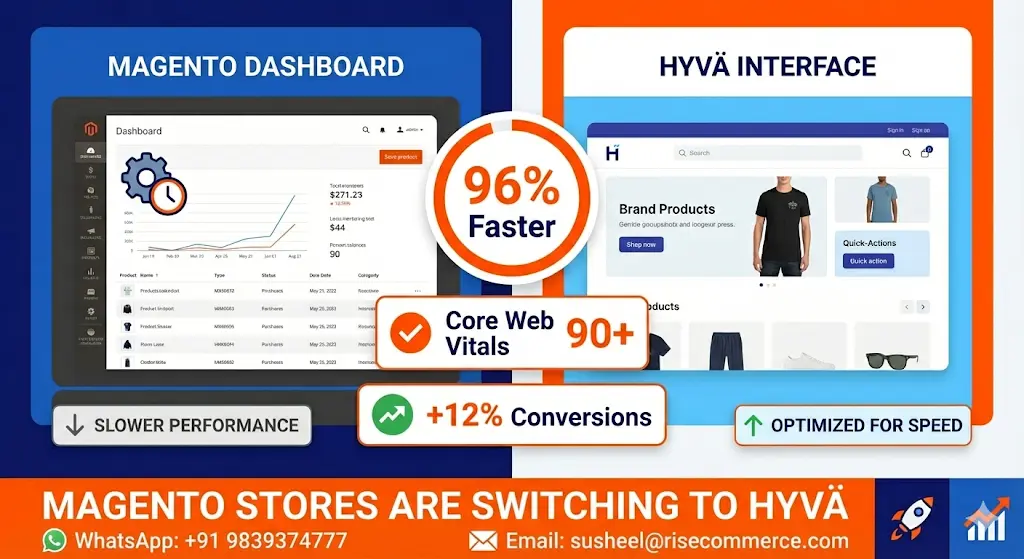
- Hyvä theme users should review the Hyvä compatibility module list and update their sites based on those releases.
Custom Development will take the most time to complete versus other applications, because most require a developer’s judgment and not simply scanning with tools.
If you are on Hyvä and need dedicated expertise, you can directly Hire a Certified Hyvä Magento Developer from our team who has hands-on experience with every major Hyvä release.
Step 7: Plan Your Maintenance Window Carefully
Select a period of low store traffic to perform your upgrade to production. You can analyze your slowest periods within Google Analytics or Adobe Analytics. In most instances, this is during the early morning hours on Sunday.
Communicate the downtime clearly to your customers via:
- A banner or pop up on your web store (5 days prior)
- An email notification sent to subscribers if the downtime exceeds 30 minutes
- A Custom maintenance page displayed when visitors access the site, if not completed within the scheduled timeframe.
Conclusion
Upgrading to Adobe Commerce 2.4.9 is a wise decision if you want improved security, performance, and supportability in the future; however, like anything else, there are right and wrong ways to go about it. The merchants who will benefit most from upgrading will be the ones who engaged in proper planning and testing prior to initiating their upgrade project and that also worked with knowledgeable Magento developers who have successfully completed these types of upgrades before.
If you do not know where to start or if your team does not currently have the resources available to complete this upgrade correctly, we want to help.
Get expert help with your Adobe Commerce 2.4.9 upgrade. Contact Risecommerce today.
Call us: +91 98393 74777
Visit: https://risecommerce.com/
Our team consists of Adobe Certified eCommerce professionals that have successfully executed upgrades for several clients in different industries. We manage the entire upgrade process including compatibility assessments, updating extensions, staging site development, custom code migrations, and post-launch support so you can focus on managing your business.
FAQs
1. Is Adobe Commerce 2.4.9 a mandatory upgrade?
If you are on an older version that has reached end-of-life, yes – Adobe no longer releases security patches for unsupported versions. Staying on an outdated release exposes your store and customer data to real risk.
2. How long does an Adobe Commerce 2.4.9 upgrade typically take?
It depends on the size of your store and the number of custom extensions. A basic upgrade on a clean store can take 8 to 12 hours. A heavily customized enterprise store can take several weeks including testing.
3. Can I upgrade directly from Adobe Commerce 2.4.6 to 2.4.9?
Yes, Adobe supports in-place upgrades across minor versions. However, always review the release notes for each version in between to understand all the changes that will apply.
4. Will my current Hyvä theme work with Adobe Commerce 2.4.9?
Hyvä releases compatibility updates alongside major Adobe Commerce releases. Check the Hyvä compatibility matrix and update your Hyvä modules before upgrading the core.
5. What happens to my custom checkout if I upgrade?
Custom checkout modifications – especially those using Knockout.js or custom UI components – are at high risk of breaking. A thorough code audit and staging test is essential before touching production.
6. Do I need to upgrade PHP before upgrading Adobe Commerce?
If your current PHP version is not supported by Adobe Commerce 2.4.9, yes. Upgrade PHP first in a separate, tested step. Running an unsupported PHP version will cause installation failures.
7. What is the Upgrade Compatibility Tool and how do I run it?
It is an Adobe-provided CLI tool. Install it via Composer, point it at your Magento root and your target version, and it outputs a report of all incompatibilities. Your development team should review and resolve all critical errors before proceeding.
8. Can I upgrade Adobe Commerce myself without a developer?
Not recommended for production stores. The upgrade process involves Composer commands, database schema migrations, static content deployment, and cache rebuilding. A wrong step can take your store offline. Work with a qualified Magento developer or agency.
9. How do I handle third-party extensions that are not yet compatible?
Contact the vendor first. If no update is available, your developer can either temporarily disable the module, patch it manually, or find an alternative. Never run an incompatible extension on a live upgraded store.
10. How can Risecommerce help with my upgrade?
We offer end-to-end Adobe Commerce upgrade services – from initial compatibility audits to post-launch monitoring. Our team is Adobe Certified and has hands-on experience with complex, large-scale Magento 2 upgrades. You can also directly contact our team here.